


 Video Converter Ultimate
 Skärminspelare
 Video reparation
 Säker nedladdning
En omfattande guide om hur du skapar en ringsignal från ett röstmemo
Många utvecklare har dock skapat programvara för att göra ringsignaler. Detta innebär att du fritt kan ta utdrag av dina favoritlåtar eller spela in din röst som ringsignal. I den här artikeln förklarar vi hur du gör ett röstmeddelande till en ringsignal. Vi hoppas att du hittar svaret du letar efter.

Del 1. Bästa sättet att göra ett röstmemo till en ringsignal
Om du också letar efter en funktionsrik ringsignalskapare kan du välja den noggrant utvalda Video Converter Ultimate, ledaren även på den hårt konkurrensutsatta marknaden för multimedioredigering. Olika smartphonemodeller kan stödja olika ringsignalsformat, men detta är inget problem med Video Converter Ultimate. Som du kan förstå av namnet är dess kärnfunktion att konvertera filformat. Så oavsett i vilket format du spelar in eller laddar ner röstmeddelanden kan du konvertera dem så att de passar din telefons format. Du kan till och med använda det för att extrahera ljud direkt från videor, vilket öppnar upp en mängd olika möjligheter för ringsignaler. Du kan också ändra volym, spår, längd osv. för det valda ljudet. Med Video Converter Ultimate kommer det inte längre att vara en dröm att när som helst göra ett röstmeddelande till en ringsignal.
Gratis nedladdningFör Windows 7 eller senareSäker nedladdning
Gratis nedladdningFör MacOS 10.7 eller senareSäker nedladdning
Här kommer vi att berätta hur du redigerar dina inspelade eller nedladdade röstmemon så att du kan använda dem som din ringsignal.
Steg 1. Ladda ner och installera Video Converter Ultimate på din dator. Starta sedan programmet på skrivbordet.
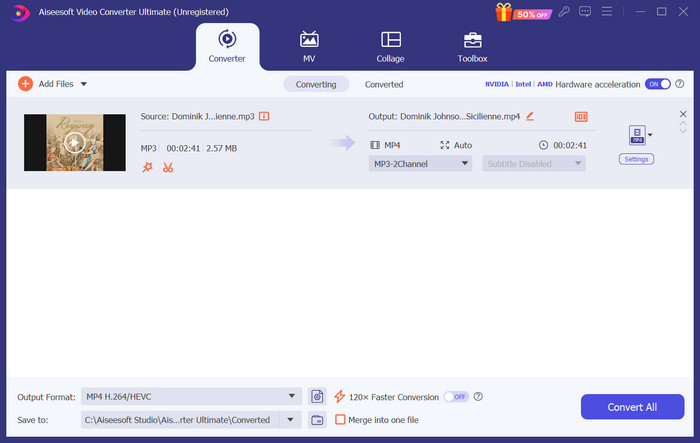
Steg 2. Klicka på Add Files för att ladda upp ljudfilen du vill redigera.
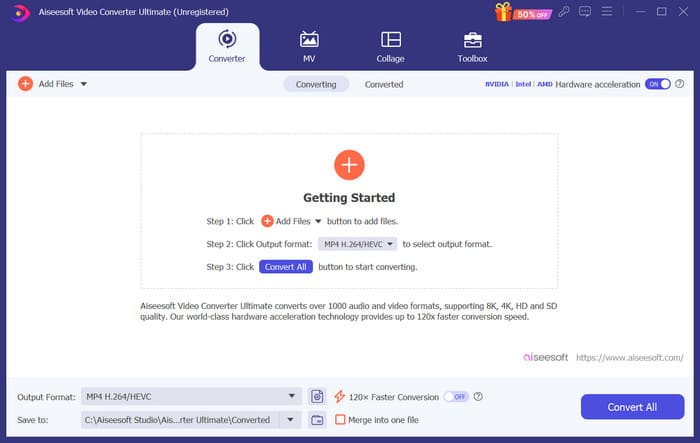
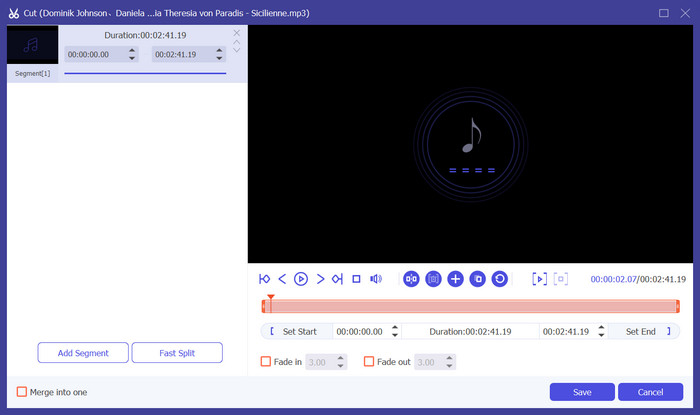
Steg 3. För att trimma ljudet klickar du på Cut. Du kan justera filens längd. När du har trimmat klart klickar du på Save.
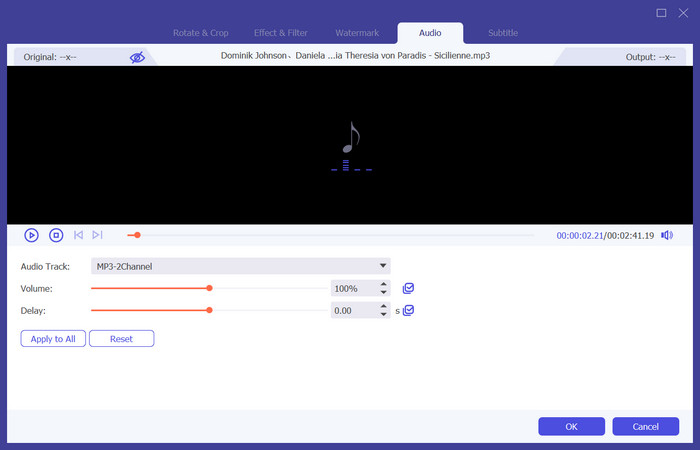
Steg 4. För att redigera volym och ljudspår för dina röstmeddelanden klickar du på Edit. I fönstret som visas kan du göra de justeringar du vill. När du är klar med redigeringen klickar du på OK.
Steg 5. Om du behöver ändra format på filen öppnar du rullgardinsmenyn bredvid Output Format. Här kan du välja utdataformat för ditt ljud.
Steg 6. När du vill exportera den redigerade ringsignalen klickar du på Convert All.
Del 2. Hur man gör ett röstmemo till en ringsignal på iPhone
Vi rekommenderar GarageBand om du vill skapa en röstmemo-ringsignal på din iPhone. Detta är en applikation utvecklad av Apple. Användare kan använda den för att skapa musik på sina iOS-enheter. Den har många verktyg för musikproduktion, inspelning, redigering och mixning. GarageBand kan också integreras med annan Apple-programvara. Det betyder att vi enkelt kan överföra projekt mellan GarageBand och annan programvara för vidare redigering. Denna app är populär bland både professionella användare och nybörjare på grund av dess användarvänliga gränssnitt, omfattande funktioner och tillgänglighet. Alla inställningar kan göras på telefonen utan hjälp av någon annan enhet.
Här är vad du behöver göra för att förvandla ett röstmemo till en ringsignal.
Steg 1. Innan du ställer in dina ringsignaler måste du öppna appen Röstmemot på din iPhone för att välja ett röstmeddelande.
Steg 2. När du har valt det röstmeddelande du vill använda trycker du på ikonen med tre prickar. Välj Save to Files och tryck sedan på Save igen för att bekräfta din åtgärd.
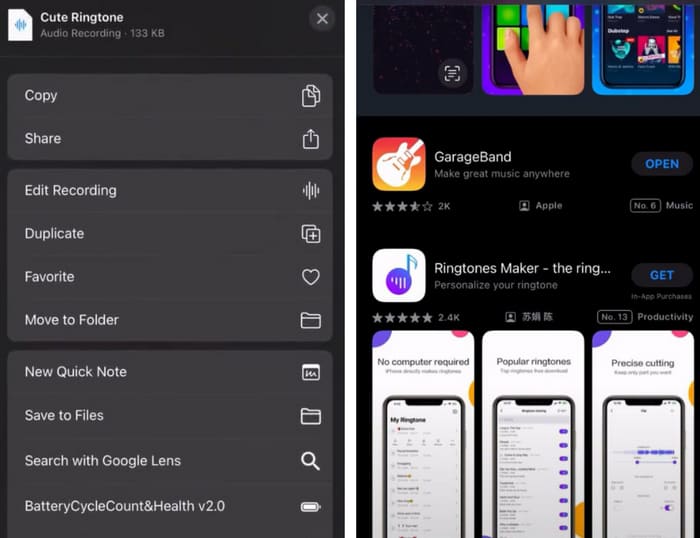
Steg 3. Öppna GarageBand på din iPhone och tryck på Project.
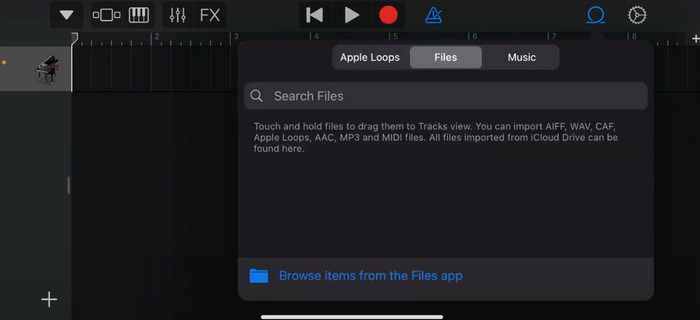
Steg 4. Välj Loop > Files. Därefter trycker du på Browse items from the Files app för att välja det röstmeddelande du vill använda.
Steg 5. Dra och släpp filen på tidslinjen.
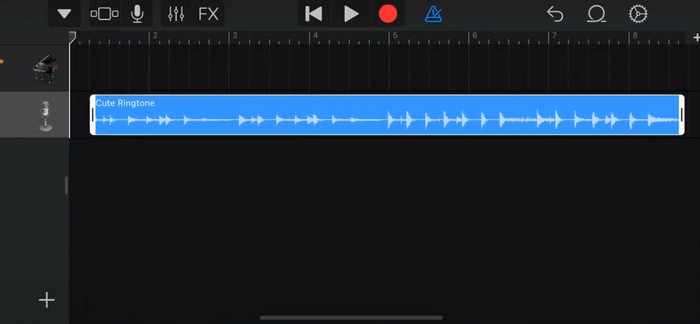
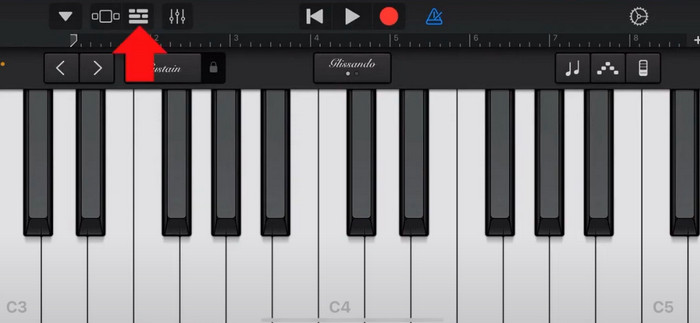
Steg 6. Inaktivera Metronome och tryck på pilen nedåt > My Songs.
Steg 7. Tryck och håll ned klippet och välj sedan Share.
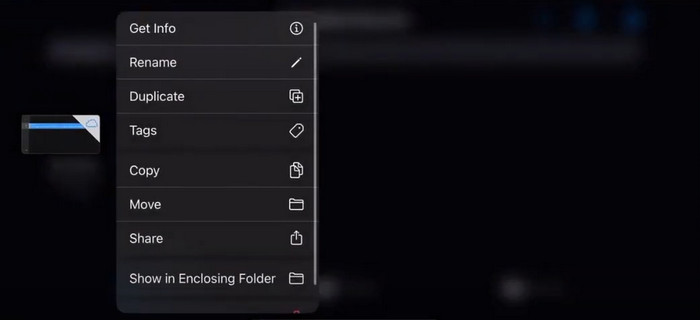
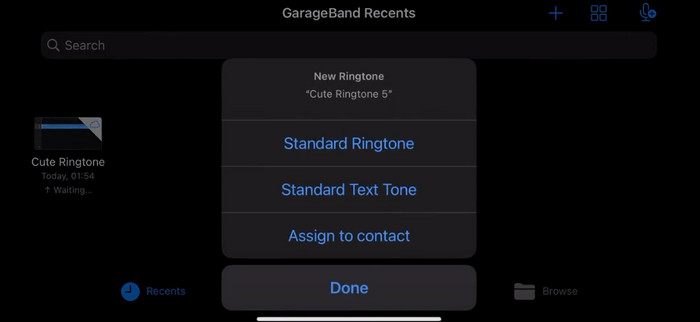
Steg 8. Välj Ringtone bland alla alternativ och tryck på Export. Tryck slutligen på Use sound as > Standard Ringtone. Därmed har du lyckats skapa en ringsignal från ett röstmeddelande.
Del 3. Hur man gör en röstinspelning en ringsignal på Android
Om du använder en Android-telefon och vill förvandla den inspelade musiken till en ringsignal kan du göra det direkt i appen Inställningar på din telefon. Proceduren är mycket enkel, och det finns inget behov av att ladda ner någon programvara för denna process. Men om du vill modifiera ditt inspelade ljud kan du välja ett professionellt ljud- och videoredigeringsprogram som FVC-valda Video Converter Ultimate.
Härnäst går vi igenom hur du gör en röstinspelning till en ringsignal på Android. I den här delen använder vi en Samsung‑smartphone som exempel. Innan du börjar ska du se till att du har sparat inspelningsfilen i appen Voice Recorder.
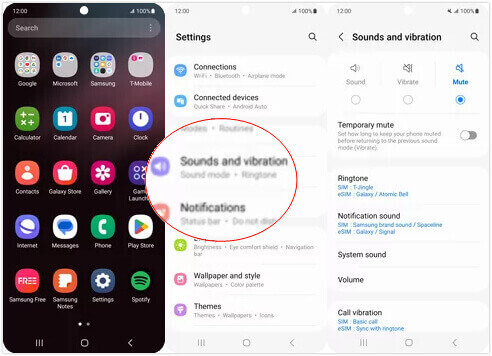
Steg 1. Öppna Settings på din telefon och välj Sounds and vibration.
Steg 2. Se till att Sound är markerat under Sound mode. Välj sedan Notification sound.
Steg 3. Välj musikfilen du har spelat in. Gå slutligen tillbaka till startsidan för att tillämpa inställningarna.
Del 4. Vanliga frågor om att göra ett röstmemo till en ringsignal
Vilket format är ringsignaler för Android?
Ringsignaler för Android-enheter kan komma i olika ljudfilformat, men de vanligaste formaten som stöds är MP3, AAC, M4A, OGG och WAV.
Hur sparar jag ett röstmemo som en låt på min iPhone?
Öppna Voice Memos-appen på din iPhone och leta reda på röstmemo som du vill spara som en låt. Vänligen tryck på röstmemot för att öppna det och tryck sedan på delningsikonen för att se de tillgängliga delningsalternativen. Du kan välja att spara röstmemot i appen Filer. Efter det kan du öppna en musikapp på din iPhone som stöder import av ljudfiler. Appar som GarageBand eller Music Memos är lämpliga.
Hur spelar man in ljud på Android Samsung?
För att spela in ljud på en Android‑enhet från Samsung använder du den inbyggda Voice Recorder. Öppna den och tryck på Record för att starta inspelningen. När du har spelat in klart kan du spara ljudfilen och ge den ett namn så att den är lätt att hitta.
Slutsats
I den här artikeln besvarar vi frågan hur man gör ett röstmeddelande till en ringsignal. Vi erbjuder dig ett av de bästa verktygen för ringsignalsredigering, FVC Video Converter Ultimate. Metoder för att göra ett röstmeddelande till en ringsignal på iPhone och Android‑telefoner listas. Vi ger också fullständiga steg‑för‑steg‑instruktioner för varje del ifall du stöter på några problem.
-
 Topp 3 lösningar för att komprimera WAV-filer till en mindre storlek
 Om du också letar efter sätt att komprimera storleken på WAV-ljudfiler, läs vårt innehåll. Vi kommer att introducera dig till olika verktyg från tre aspekter.
-
 Fördjupad ljudkomprimeringshandledning 2024 (steg-för-steg)
 Behöver du komprimera ljud men behöver hjälp med att lista ut var du ska börja? I det här inlägget kommer vi att presentera de bästa valen för att minska filstorleken på dina spår.
-
 Effektiva ljudkompressorer för offline- och onlineanvändare
 Har du problem med stora ljudfiler? Det finns många ljudfilkompressorer tillgängliga för offline- och onlineanvändare. Kolla in dem här.
