


 Video Converter Ultimate
 Gravador de ecrã
 Reparo de vídeo
 Secure Download
3 procedimentos finais para remover marcas d'água da Getty Images
Many people enjoy saving photos from the Getty Images stock library. However, unless you pay the royalty charge, images without watermarks cannot be saved directly. As a result, many clients wince at the high price. In this case, you can acquire a clear image by removing the Getty image watermark. Luckily, you are in this article. We will give you an easier way to learn how to remove Getty Image watermarks using online tools and downloadable applications. Read further to discover more!

Parte 1: Ferramenta on-line para remover marcas d'água da Getty Images
One of the most excellent tools to remove Getty Image watermarks is FVC Free Watermark Remover. With this tool, Getty Image watermarks can be instantly deleted. Unlike the other tools, you can eliminate this watermark without paying any charges. So, if you want to remove the Getty Image watermark from a picture, you may use this watermark removal tool without worrying about whether or not your image is supported. Also, there are several tools you can use to remove Getty Image watermarks, like the watermark remover tools and the cropping tool.
Além disso, sua foto será armazenada no mesmo formato do original quando a marca d'água for removida adequadamente. O FVC Free Watermark Remover é adequado para iniciantes porque possui um design intuitivo, botões simples e um manual do usuário direto. Você pode apagar rapidamente marcas d'água de fotos com um processo simples.
Você pode usar três ferramentas nas ferramentas de remoção de marca d'água, Laço, Pincel e Poligonal. Neste procedimento, usaremos a ferramenta Pincel. Depois disso, você também aprenderá a usar a ferramenta de corte para remover marcas d'água.
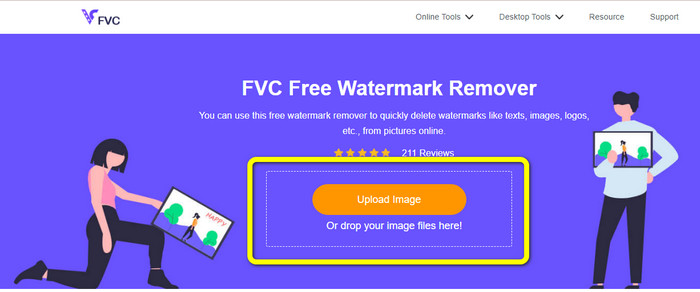
Step 1: Visit the FVC Free Watermark Remover website using your browser. Then click the Upload Image button to import the photo with a Getty images watermark.
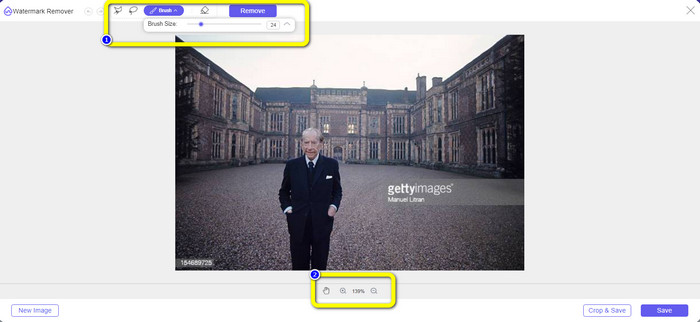
Step 2: After importing the image, you can choose the Brush tool to highlight the Getty Images watermarks. You can also alter the size of the brush to fit the watermarks. On the second box, you can use it to scale up and back the picture so that you can see the watermarks clearly.
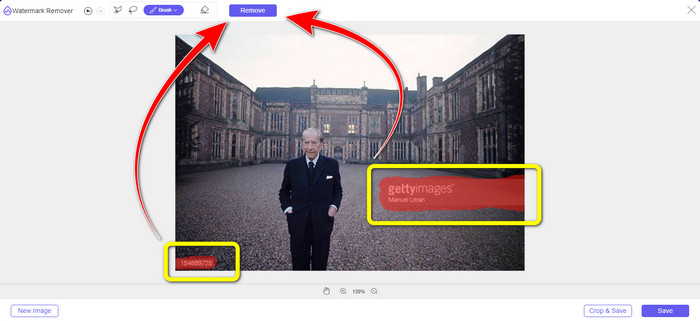
Step 3: After highlighting the Getty Images watermarks, you can proceed to remove them by clicking the Remove button. Afterward, wait for a few seconds for the removal process.
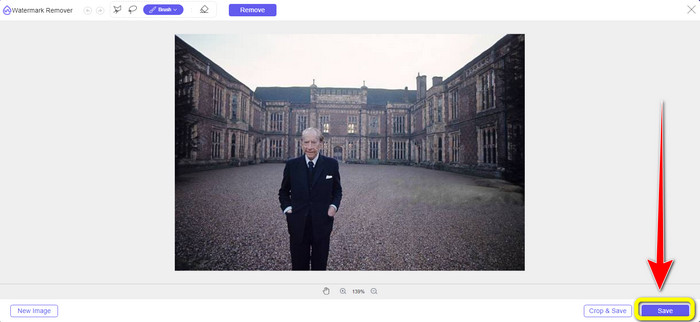
Step 4: For the next and last step, you can already download the photo without the Getty images watermarks by clicking the Save button.
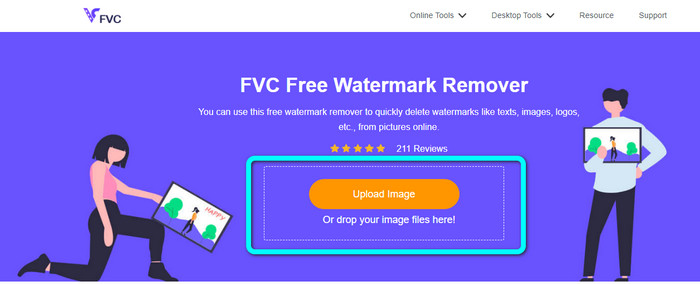
Step 5: In this step, you will learn how to use the Cropping tool. Upload the image with a Getty images watermark by hitting the Upload Image button. Your folder will show up on the screen. Choose your desired image file. Dropping the file into the box is another option for inserting an image file.
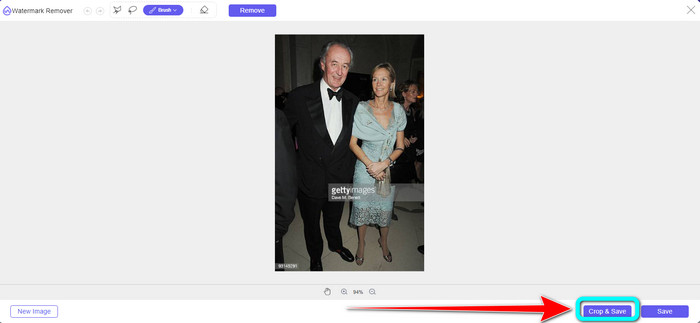
Step 6: On the side of the Save button, click the Crop&Save button to start cropping the image with a watermark.
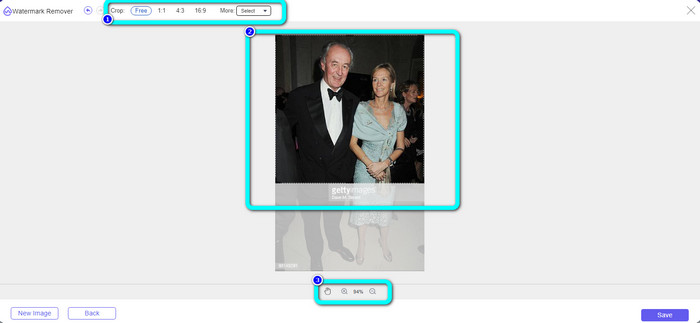
Step 7: You can choose any crop options in the first box. You can manually crop the photo on the second box using your mouse. And on the third box, you can zoom your photo by clicking the + and - icon.
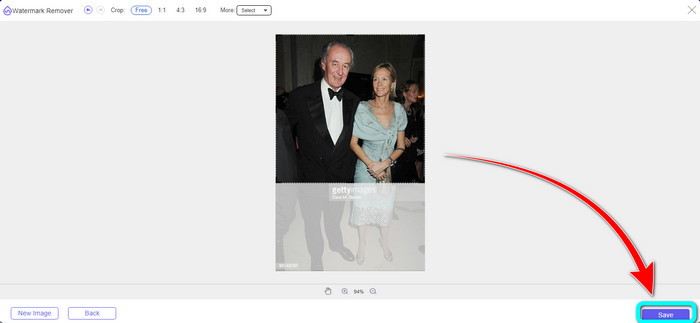
Step 8: After cropping your photo, you can already click the Save button to save your photo without the Getty Images watermarks.
Parte 2: Aplicativo para download para remover marcas d'água da Getty Images no telefone
Esta parte ensinará como remover marcas d'água da Getty Images de suas fotos usando seu telefone. Este aplicativo eficaz que você pode utilizar é o aplicativo Fotos. Este software é capaz de remover marcas d'água da Getty Images. Você pode operá-lo com apenas alguns cliques. Dessa forma, você não precisa baixar outro removedor de marca d'água no google ou na app store. Além disso, é adequado para todos os usuários, seja você um usuário avançado ou não profissional. Possui um método simples e de fácil entendimento. Se você quiser experimentar este aplicativo para remover as marcas d'água da Getty Images de sua foto, siga as instruções simples abaixo.
Step 1: Launch the Photos application on your phone. Then, open the photo with the Getty Images watermark.
Step 2: After that, click the Edit button on the lower part of the interface and select the Eraser tool.
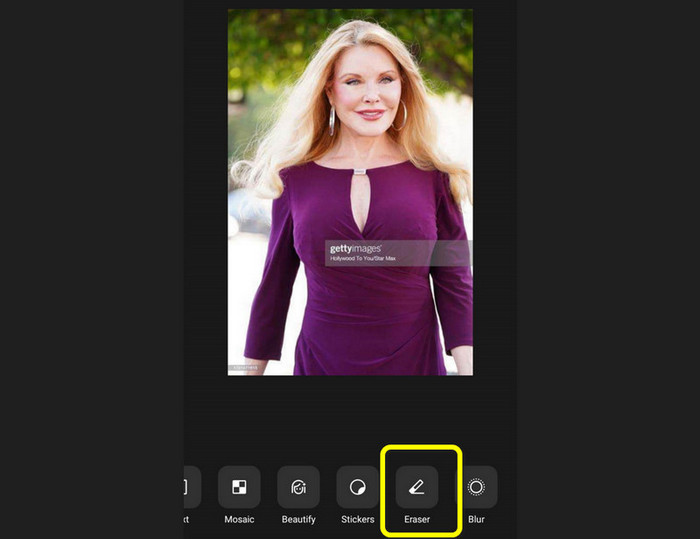
Step 3: Use the Eraser tool to remove the Getty Images watermark from the photo. If you are done, click the Check icon to save the photo.

Parte 3: Remover marcas d'água da Getty Images usando o Photoshop
Outra ferramenta que você pode usar para remover marcas d'água Getty Image de sua foto é o Adobe Photoshop. Esta é uma ferramenta popular usada por fotógrafos, designers gráficos, editores, etc. Com este aplicativo, você pode apagar todos os objetos perturbadores de suas fotos. Além disso, além de remover marcas d'água, você pode usar o Photoshop para aprimorar suas imagens usando ferramentas de edição como filtros, correção de cores, brilho e outros. Você também pode fazer mais designs gráficos e ilustrações, como lonas, brochuras, flyers, convites, etc.
No entanto, utilizar o Photoshop é um desafio, especialmente quando você é iniciante. Possui muitas ferramentas avançadas que um usuário ainda não consegue entender. Portanto, sugere-se usar ferramentas mais simples ou assistir a tutoriais. Além disso, a compra do Adobe Photoshop é cara. Ele só pode oferecer uma avaliação gratuita de sete dias.
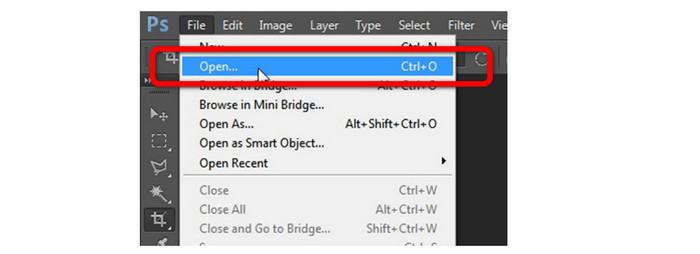
Step 1: After downloading Adobe Photoshop, click the File menu and choose the Open button to insert the photo with the Getty images watermarks.
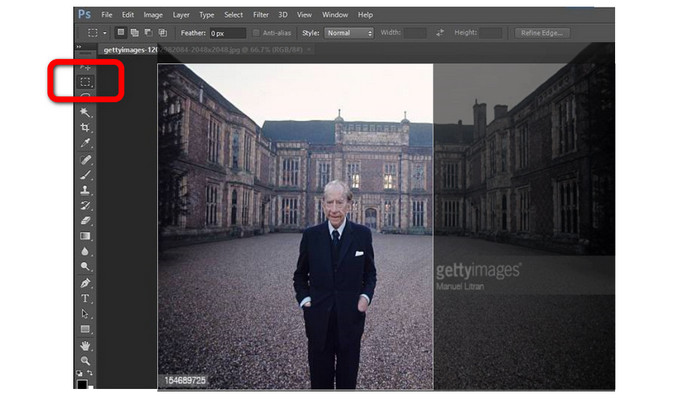
Step 2: The easiest way is to select the Cropping tool on the left side of the interface. Then crop the photo to eliminate the Getty Images watermarks.
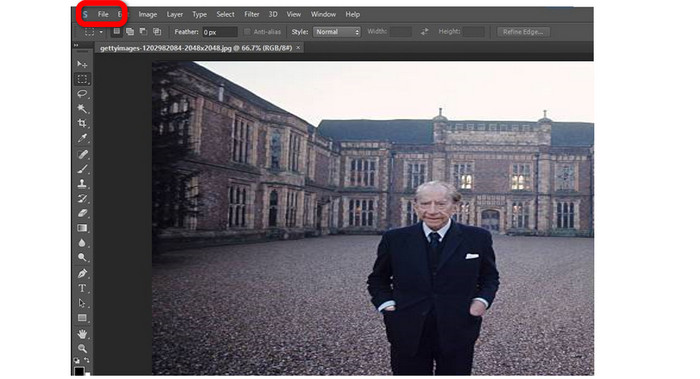
Step 3: You can already save your photo after cropping the image. You can press ctrl+S to save your picture.
Relacionado a:
Complete Guides to Easily Remove iFunny Watermarks
Online and Offline Methods on How to Remove Alamy Watermarks
Parte 4: Perguntas frequentes sobre como remover marcas d'água da Getty Images
1. Posso usar o Mac para remover a marca d'água da Getty Images usando o Apowersoft Watermark Remover?
Unfortunately, no. Apowersoft Watermark Remover is only accessible on Windows PC. If you want to erase watermarks from your photo using a Mac, you can use the FVC Free Watermark Remover.
2. Posso usar Getty Images diretamente com marcas d'água?
Claro que não. Estas fotos são protegidas contra cópia. Se você usá-los, você será punido. Você só pode usá-los se tiver a permissão do proprietário.
3. Como posso colocar marcas d'água na minha foto?
O Photoshop pode ser usado para aplicar marcas d'água em suas imagens. Você pode criar uma nova camada ou adicionar texto a uma imagem como sua marca d'água. Além disso, você pode aplicar marcas d'água a imagens usando vários aplicativos de terceiros ou aplicativos de fotos integrados em seu smartphone.
Conclusão
These informative discussions gave you enough solutions to remove Getty Images watermarks from your photo. As you observed, some applications have limitations, and some are complicated to use. If that’s the case, you can use FVC Free Watermark Remover. It is easy to utilize and doesn’t have limitations when removing watermarks from your images.
-
 Maneiras de como remover facilmente marcas d'água do Reddit de imagens
 Se você está aqui, pode estar procurando um excelente removedor de marca d'água do Reddit. Nesse caso, mostraremos o método mais fácil de remover marcas d'água do Reddit
-
 5 maneiras de remover a marca d'água B612 usando as melhores ferramentas
 Quer saber como remover marcas d'água B612 de suas fotos? Você pode facilmente remover a marca d'água B612 de suas imagens usando essas excelentes ferramentas
-
 Passos fáceis sobre como remover a marca d'água WOW Slider [Resolvido]
 WOW Slider é um aplicativo para criar uma apresentação de slides fantástica. No entanto, ele incorpora marcas d'água em sua saída. Leia abaixo para saber como remover a marca d'água WOW Slider
