


 ビデオコンバーター究極
 スクリーンレコーダー
 ビデオ修復
ビデオ修復色相、彩度、値を使用したメディア編集における色の仕組みを学びます
メディアエディターの色相(Hue)、彩度(Saturation)、明度(Value)の設定をいじってみたことはありますか? これらは HSV カラーモデルの重要な要素であり、一般的によく使われる RGB(Red, Green, Blue)モデルの代替となるものです。では、なぜ気にする必要があるのでしょうか? HSV を理解すると、色を自在に操れるようになり、メディア編集のスキルを高められるからです。この記事では、HSV をわかりやすく解説し、メディアエディターで効果的に活用する方法を案内します。

パート 1. 色相、彩度、明度とは何ですか?
私たちが色を認識するのは、光が透明なものを通過したり、物体に反射したりするときです。これは、私たちの目が特定の光の波長を感知することで起こります。色は、色相(Hue)、彩度(Saturation)、明度(Value)という3つの要素で成り立っています。
フエ
赤や青などの色を指します。これは色を説明するときに最初に言うことです。光には、赤、緑、青の 3 つの基本的な色相が含まれます。これらの色合いは、テレビやコンピューター モニターなどの電気機器内で、赤、緑、青の蛍光体を介して連携して機能します。
飽和
これは、色がどれほど明るく強力かを表します。明るさが低いと、彩度も低くなります。白や黒を加えると輝きが減ります。彩度は「強度」または「彩度」として知られ、色がどれだけ目立つかを表します。カラーホイールを考えてみましょう。中心に近づくにつれて、色は見えにくくなります。中央には色が目立たず、これを彩度の低い色相と呼びます。
価値
これは、色がどの程度明るいか暗いかを表します。色がどのくらい明るいか暗いかを言うようなものです。カラー ホイールでは、色の全体的な明るさまたは強度が表示されます。カラー ホイールは円であり、その値は中心を通る直線で表され、明るいところから暗いところまでの範囲を示していると考えてください。
その2. 色相、彩度、明度の違い
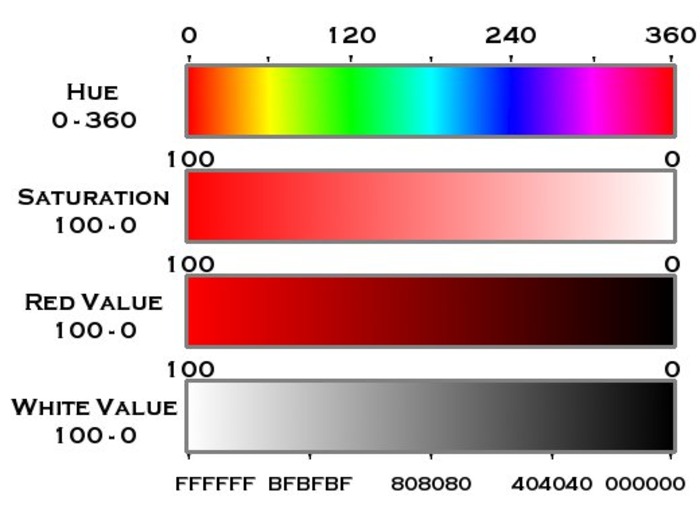
Hue は、HSV 色規格のホイール (0 ~ 360 度) に色の種類を表示します。彩度と値はパーセンテージ (0% ~ 100%) で、彩度は色の強度を表し、値はその明るさを示します。白には明確な色相がありませんが、黒には色と明るさの両方がありません。グレーの明るさの範囲は 0 ~ 100 です。この表は HSV 値を簡略化しており、色相、彩度、および値によって色をより適切に把握できるようにしています。
| 色 | 色相(度) | 彩度(%) | 値(%) |
| 赤 | 0 | 100 | 100 |
| 黄色 | 60 | 100 | 100 |
| 緑 | 120 | 100 | 100 |
| シアン | 180 | 100 | 100 |
| 青 | 240 | 100 | 100 |
| 赤紫色 | 300 | 100 | 100 |
| 白 | – | 0 | 100 |
| 黒 | – | 0 | 0 |
| グレー | – | 0 | (0-100) |
パート 3. ビデオの最適な色相、彩度、値の設定
ビデオに最適な HSV 設定は、撮影する特定のシナリオによって異なります。以下に、色相、彩度、明度の設定を調整することでビデオ コンテンツがどのように改善されるかを示す 5 つのビデオ シナリオの例を示します。
映画的な
ビデオをより映画のように見せるには、赤とオレンジを少し加えた、あまり鮮やかでない色を使用します。上品な外観にするために色が明るすぎないようにし、細部を失うことなく映画のような雰囲気を捉えるために明暗が適切に混合されていることを確認してください。
◆ 色相(Hue): 30〜40度(赤やオレンジ寄りの暖色系)。
◆ 彩度(Saturation): 70〜80%(洗練された印象を与える中程度の彩度)。
◆ 明度(Value): 50〜60%(ディテールを失わないバランスの取れたコントラスト)。
市
ブルーとグレーを使用して、都市のシーンにクールで魅力的な雰囲気を与えます。色で遊んで、モダンとクラシックのバランスを作りましょう。照明や街路では、鮮やかな色を保ちながらも自然な色を保ちます。明るいエリアと暗いエリアのバランスが適切に取られ、活気のある都市の外観が得られるようにします。
◆ 色相(Hue): 200〜220度(青やグレー寄りの寒色系)。
◆ 彩度(Saturation): 60〜70%(自然な印象を保つ中程度の彩度)。
◆ 明度(Value): 明るい部分と影のバランスを取る設定。
自然
植物には緑を、自然の風景の土っぽい部分には茶色を強調表示して、それらを際立たせます。特に春や秋などの明るい季節には色合いを強調します。自然光を捉えるように明るさを調整し、明るい場所でも暗い場所でも細部まで確認できます。これは間違いなくあなたの自然ビデオを輝かせるでしょう。
◆ 色相(Hue): 80〜120度(グリーンやブラウンを強調した自然なトーン)。
◆ 彩度(Saturation): 80〜90%(色を鮮やかに見せる高めの彩度設定)。
◆ 明度(Value): 50〜70%(照明状況に応じて明るさを調整)。
明るい日
黄色とオレンジに向かう傾向の暖かい色調を使用して、明るい日の暖かさを捉えます。この方法で色合いを調整すると、ビデオに暖かく晴れやかな魅力を与えることができます。彩度を上げすぎないように、バランスが取れた自然な状態を保ちます。日光の強さに合わせて明るさを上げ、明るい場所でも日陰の場所でも細部が見えるようにします。この方法により、ビデオが暖かく、活気に満ちた、晴れた日のようなものになることが保証されます。
◆ 色相(Hue): 40〜60度(イエローやオレンジ寄りの暖色系)。
◆ 彩度(Saturation): 60〜70%(自然な見た目を保つ中程度の彩度)。
◆ 明度(Value): 日差しを感じさせるよう、やや明るめに設定。
夏
ビデオで明るく晴れた色調を使用して、夏のエッセンスを捉えます。黄色、オレンジ、水色などを考えてください。ビーチ、公園、屋外イベントなど、夏のスポットに合わせて設定を変更します。彩度を上げて、特に花や青空など、夏の鮮やかな色合いを捉えます。明るさを上げて、影の深さを維持しながら光の強度を模倣します。この方法により、ビデオから陽気で太陽が降り注ぐ夏の雰囲気が確実に伝わってきます。
◆ 色相(Hue): 40〜60度(イエロー、オレンジ、淡いブルーを主体とした暖かいトーン)。
◆ 彩度(Saturation): 80〜90%(夏らしい鮮やかな色合いを出すための高めの彩度)。
◆ 明度(Value): 夏のにぎやかな雰囲気を演出するため、明るさを強めに設定。
パート 4. Video Converter Ultimate を使用して色相、彩度、明度を調整する方法
Video Converter Ultimate は、動画を手軽に高品質化できる最適なツールです。1000種類以上の形式に対応し、複数のタスクを同時に処理できます。基本的な変換機能だけでなく、3D作成、カラー補正、ウォーターマーク除去などを備えた総合的なメディアツールボックスです。動画の色相・彩度・明度を調整しながら、その場で結果を確認することも可能です。さらに、編集経験が豊富な方でも初心者の方でも、このツールならシンプルさと高い操作性を両立して扱えます。
ステップ1 下のリンクをクリックしてプログラムを入手します。ダウンロードしたファイルをダブルクリックしてインストールし、完了したら起動します。
無料ダウンロードWindows 7 以降対応安全なダウンロード
無料ダウンロードMacOS 10.7 以降に対応安全なダウンロード
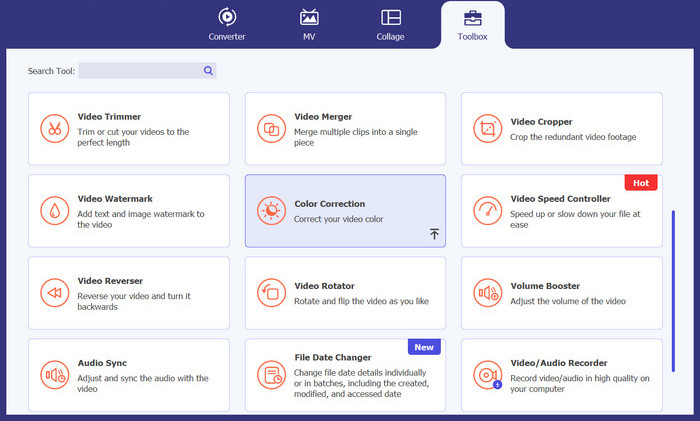
ステップ2 ツールボックス アイコンをクリックし、下にスクロールして カラー補正 ツールを選びます。中央の追加ボタンをクリックして、編集したい動画を読み込みます。
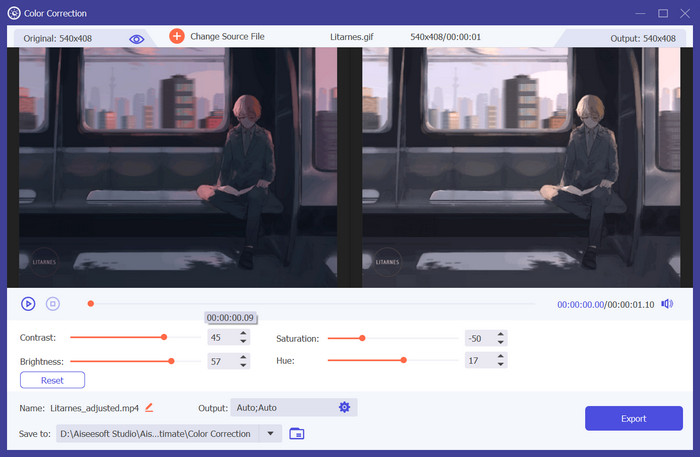
ステップ3 プログラム内には元の動画と出力動画の両方が表示されます。下部の 色相(Hue)、彩度(Saturation)、明度(Value) を調整して編集します。仕上がりに満足したら、右下にある エクスポート ボタンをクリックします。
さらに詳しく読む:
パート 5. 色相、彩度、明度に関するよくある質問
HSV と RGB の違いは何ですか?
HSV は、色と明るさを区別することにより、画像処理における色の比較を簡素化します。ただし、RGB は、赤、緑、青の比率を 1 つの数値で表すことによって定義されます。
HSV カラーを RGB に変換することはできますか?
はい、色相、彩度、明度 (HSV) カラー コードを RGB (赤、緑、青) に変換したり、その逆を変換したりすることができます。
HSV はどこに適用されますか?
HSV はさまざまな分野で使用されるカラーモデルです。ビデオ編集者は、ビデオの色の調整、色合いの強化、特定の雰囲気の作成にこれを使用します。
結論
この記事を通して、HSV とその動画編集への活用について新たな知識を得ていただけたなら幸いです。最適な色相・彩度設定 を行うには、Video Converter Ultimate のような信頼できるアプリケーションの利用をおすすめします。これにより、編集作業がより簡単かつスピーディになり、動画コンテンツの品質も維持できます。
-
 明るすぎるビデオを修正するにはどうすればよいですか?上位 5 つの方法はこちら
 デバイスでビデオを暗くする方法については、この記事を参照してください。ここで説明されている解決策を読んで、それぞれの方法を試してください。
-
 2025年に必須のビデオカラーコレクタートップ5
 ビデオの色を補正する方法についてサポートが必要ですか?私たちはあなたにぴったりのツールを用意していますので、もう探す必要はありません。これらのツールについて詳しく調べるには、ここをクリックしてください。
-
 ビデオの明るさを調整する方法: 4 つの簡単なテクニック
 ビデオの明るさを簡単に調整するにはどうすればよいですか?デスクトップ、iPhone、オンラインに最適なビデオ輝度エディターについて説明したので、この投稿をチェックしてください。
