


 वीडियो कनवर्टर अंतिम
 स्क्रीन अभिलेखी
 वीडियो मरम्मत
 सुरक्षित डाउनलोड
बेहतरीन तरीकों से Android पर वीडियो को मिनटों में कैसे रोटेट करें
क्या आप अपने Android डिवाइस से ज़िंदगी के कीमती लम्हे कैद करना पसंद करते हैं, लेकिन तब झुंझला जाते हैं जब वीडियो तिरछे या उल्टे रिकॉर्ड हो जाते हैं? यह एक आम समस्या है, लेकिन सौभाग्य से इसे ठीक करना बहुत आसान है। आपको किसी उन्नत वीडियो एडिटिंग कौशल की ज़रूरत नहीं है। आपको बस अपना Android डिवाइस या कोई प्रभावी वीडियो घुमाने वाला एंड्रॉइड ऐप और कुछ ही मिनटों का समय चाहिए।.
पोस्ट के अंत तक, आप अपने वीडियो को एक प्रोफ़ेशनल की तरह रोटेट कर पाएंगे और फिर कभी भी साइडवे वीडियो देखने की ज़रूरत नहीं पड़ेगी। उस ने कहा, आइए शुरू करें और जानें कि एंड्रॉइड पर वीडियो कैसे घुमाएं!

भाग 1। गैलरी Android में वीडियो को कैसे घुमाएं
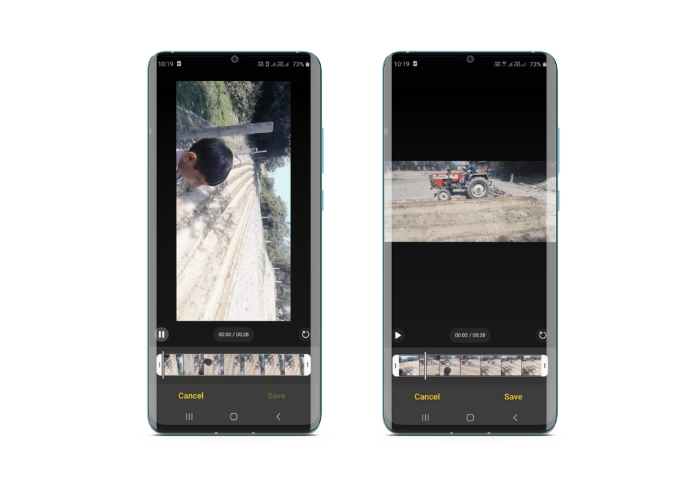
Android गैलरी ऐप में वीडियो संपादित करने के लिए कई टूल हैं जो आपके वीडियो को बेहतर बनाने में आपकी सहायता कर सकते हैं। गैलरी ऐप के साथ, आप अपने वीडियो को ट्रिम, क्रॉप, घुमा सकते हैं और यहां तक कि फ़िल्टर और प्रभाव भी जोड़ सकते हैं। चाहे आप अवांछित हिस्से को हटाना चाहते हैं, पहलू अनुपात को समायोजित करना चाहते हैं, या कुछ रचनात्मक स्वभाव जोड़ना चाहते हैं, गैलरी ऐप आपको कवर कर चुका है। और सबसे अच्छा हिस्सा? इन सुविधाओं का उपयोग करने के लिए आपको किसी पूर्व वीडियो संपादन अनुभव की आवश्यकता नहीं है। इंटरफ़ेस सहज है, जिससे किसी के लिए भी अपने Android डिवाइस से आश्चर्यजनक वीडियो बनाना आसान हो जाता है। Android पर गैलरी में वीडियो को घुमाने का तरीका जानने के लिए दिए गए चरणों का संदर्भ लें।
चरण 1. अपने Android डिवाइस पर गैलरी ऐप लॉन्च करें। वह वीडियो ढूंढें जिसे आप घुमाना चाहते हैं और उसे खोलने के लिए उस पर टैप करें।.
चरण 2. स्क्रीन के निचले हिस्से में स्थित एडिट आइकन (जो पेंसिल जैसा दिखता है) पर टैप करें। अब आपको स्क्रीन के नीचे एडिटिंग टूल्स की एक श्रृंखला दिखाई देगी, जिनमें Trim, Crop, Filters और Adjust शामिल हैं।.
चरण 3. वीडियो को घुमाने के लिए Adjust टूल चुनें। अब आपको Brightness, Contrast, Saturation और अन्य सहित कई समायोजन विकल्प दिखाई देंगे। Rotate विकल्प ढूंढें और उस पर टैप करें।.
चरण 4. Rotate बटन पर हर टैप वीडियो को 90 डिग्री दाईं ओर घुमा देगा। इसलिए, आप Android की मदद से वीडियो को 90 डिग्री-डिग्री घुमा सकते हैं। तब तक टैप करते रहें जब तक वीडियो आपकी मनचाही दिशा में न आ जाए। जब आप रोटेशन से संतुष्ट हों, तो बदलाव लागू करने के लिए सेव आइकन पर टैप करें।.
भाग 2. PowerDirector Android ऐप में वीडियो कैसे घुमाएँ
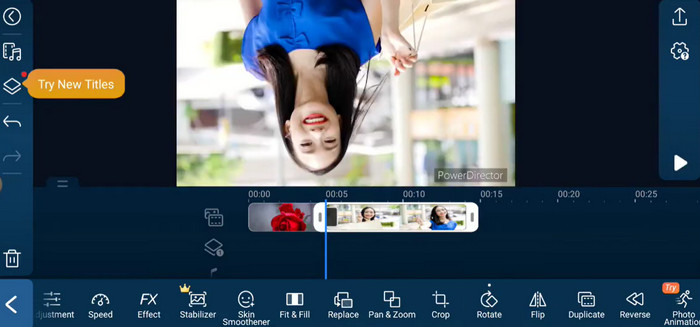
पॉवरडायरेक्टर एक वीडियो एडिटिंग ऐप है जो एंड्रॉइड प्लेटफॉर्म पर उपलब्ध है। यह एक फीचर-पैक एप्लिकेशन है जो उपयोगकर्ताओं को अपने स्मार्टफोन और टैबलेट पर वीडियो संपादित करने की अनुमति देता है। यह ऐप उपयोगकर्ताओं को अपने वीडियो को किसी भी दिशा में घुमाने की अनुमति देता है, चाहे वह दक्षिणावर्त हो या वामावर्त। यह उन वीडियो के लिए विशेष रूप से सहायक है जिन्हें गलत दिशा में शूट किया गया था, जैसे लंबवत वीडियो जिन्हें लैंडस्केप मोड में घुमाने की आवश्यकता होती है। Android डिवाइस पर PowerDirector में वीडियो को घुमाने के तरीके में महारत हासिल करने के लिए नीचे दिए गए सरल गाइड का पालन करें।
चरण 1. अपने Android डिवाइस पर PowerDirector ऐप लॉन्च करें। फिर, नया प्रोजेक्ट शुरू करने के लिए Create a video project बटन पर टैप करें।.
चरण 2. Add media बटन पर टैप करके और डिवाइस के स्टोरेज में ब्राउज़ करके वह वीडियो चुनें जिसे आप घुमाना चाहते हैं। फिर, वीडियो क्लिप को टाइमलाइन पर ड्रैग और ड्रॉप करें।.
चरण 3. इसके बाद, टाइमलाइन में वीडियो क्लिप पर टैप करके उसे चुनें। अब टाइमलाइन के ऊपर दिखाई देने वाले Edit बटन पर टैप करें।.
चरण 4. दिखाई देने वाले एडिटिंग मेनू में Rotate बटन पर टैप करें। वीडियो को इच्छित दिशा में घुमाने के लिए Rotate left और Rotate right बटनों का उपयोग करें। अंत में, वीडियो पर किए गए बदलावों को सेव करने के लिए Done बटन पर टैप करें।.
भाग 3। वीएलसी एंड्रॉइड ऐप में वीडियो कैसे घुमाएं
VLC एक प्रसिद्ध मीडिया प्लेयर है जिसे Android सहित कई प्लेटफ़ॉर्म पर इस्तेमाल किया जा सकता है। यह एक शक्तिशाली और लचीला ऐप है जो बहुत से अलग-अलग मीडिया फ़ॉर्मैट के साथ काम करता है और इसमें कई फीचर होते हैं, जैसे वीडियो को घुमाने की क्षमता। सिर्फ इतना ही नहीं, इसमें अन्य उपयोगी सुविधाएँ भी हैं, जैसे प्लेबैक स्पीड को समायोजित करना, सबटाइटल जोड़ना, और ऑडियो व वीडियो फ़िल्टर लागू करना। इसी बीच, यहाँ Android डिवाइस पर VLC में वीडियो घुमाने के चरण दिए गए हैं।.
चरण 1. अपने Android डिवाइस पर VLC ऐप खोलें। फिर, नीचे की मेनू बार में Video बटन पर टैप करें।.
चरण 2. अपने डिवाइस के स्टोरेज से वह वीडियो चुनें जिसे आप घुमाना चाहते हैं। उसके बाद, स्क्रीन के ऊपर-दाएँ कोने में मौजूद More options बटन पर टैप करें।.
चरण 3. अंत में, वीडियो रोटेशन विकल्पों तक पहुँचने के लिए Rotate पर टैप करें। वीडियो को जिस दिशा में घुमाना चाहते हैं (घड़ी की दिशा या उल्टी दिशा), उसे चुनें।.
भाग 4। कंप्यूटर पर Android वीडियो कैसे घुमाएँ
क्या आप ऐसे शक्तिशाली वीडियो कन्वर्टर की तलाश में हैं जो लगभग हर काम कर सके? तो फिर FVC Video Converter Ultimate से बेहतर कुछ नहीं। यह अत्याधुनिक सॉफ़्टवेयर आपके वीडियो पर आपको पूरा नियंत्रण देने के लिए डिज़ाइन किया गया है। इसकी वीडियो घुमाने की क्षमता के साथ, आप अपने वीडियो की दिशा को 90 डिग्री, 180 डिग्री, या 270 डिग्री तक समायोजित कर सकते हैं, या Android के फुल-स्क्रीन वीडियो रोटेट फीचर की नकल कर सकते हैं। लेकिन यह ऐप सिर्फ इतना ही नहीं करता। यह पूरी प्रक्रिया बिना किसी क्वालिटी लॉस के करता है। यहाँ आपके PC पर वीडियो घुमाने के लिए इस प्रोग्राम का उपयोग करने की चरण-दर-चरण गाइड दी गई है।.
चरण 1. प्रोग्राम की एक कॉपी प्राप्त करें और उसे इंस्टॉल करें
सबसे पहले, आपको प्रोग्राम के इंस्टॉलर की एक प्रति प्राप्त करने और इसे अपने कंप्यूटर पर सेट करने की आवश्यकता है। इसके बाद इसे तुरंत शुरू करें।
Free DownloadWindows 7 या बाद के वर्ज़न के लिएसिक्योर डाउनलोड
Free DownloadMacOS 10.7 या बाद के वर्ज़न के लिएसिक्योर डाउनलोड
चरण 2. घुमाने के लिए एक वीडियो जोड़ें
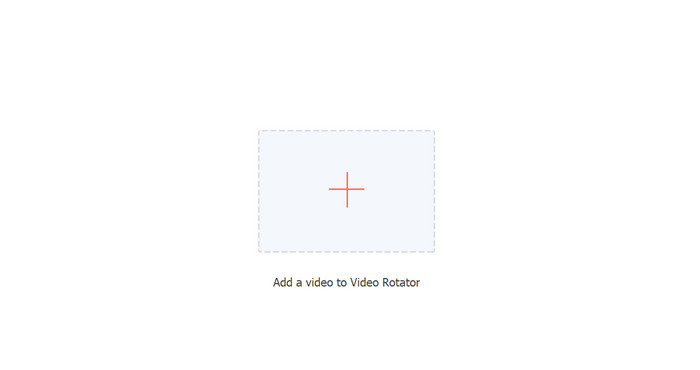
इसके बाद प्रोग्राम के Video Rotator को Toolbox टैब से एक्सेस किया जा सकता है। यदि आप इस विकल्प को चुनते हैं, तो आपसे अपने अकाउंट में वीडियो जोड़ने के लिए कहा जाएगा। वीडियो अपलोड करने के लिए, अब बस + बटन दबाएँ।.
चरण 3. रोटेट करने का तरीका चुनें
आरंभ करने के लिए, तय करें कि आप वीडियो को कैसे घुमाना चाहते हैं। क्षैतिज रूप से फ्लिप करें, लंबवत फ्लिप करें, 90 डिग्री घुमाएं और 90 डिग्री फ्लिप करें ये चार विकल्प हैं। बस अपनी वांछित रोटेशन विधि चुनें।
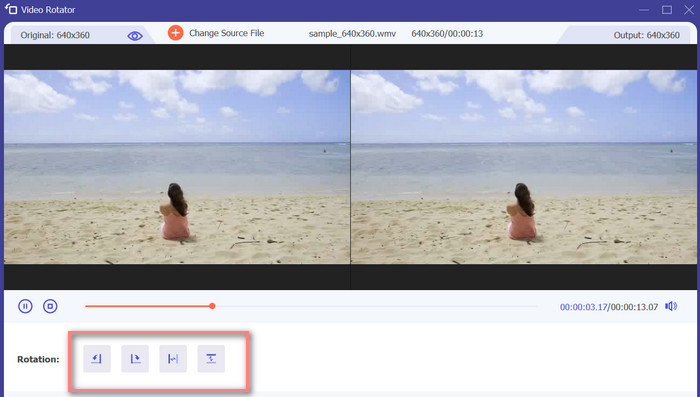
चरण 4. वीडियो फ़ाइल एक्सपोर्ट करें
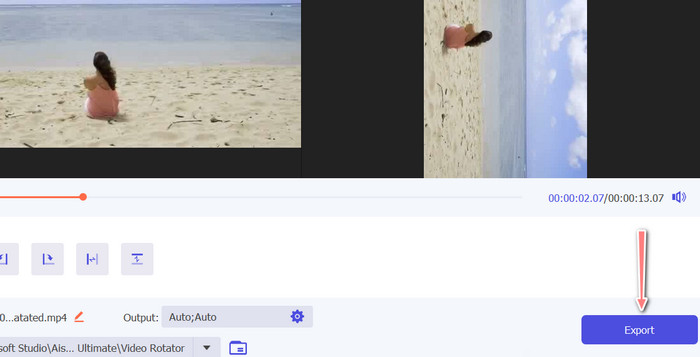
जब आप सभी बदलाव पूरे कर लें, तो आउटपुट मेनू से ऑडियो और वीडियो सेटिंग्स को संशोधित कर सकते हैं। फिर, प्रक्रिया को पूरा करने के लिए Export बटन पर टिक करें।.
भाग 5. Android पर वीडियो घुमाने के बारे में अक्सर पूछे जाने वाले प्रश्न
क्या मैं अपने Android के डिफ़ॉल्ट वीडियो प्लेयर का उपयोग करके वीडियो घुमा सकता हूँ?
नहीं, ज़्यादातर Android डिवाइसों के डिफ़ॉल्ट वीडियो प्लेयर में वीडियो घुमाने की सुविधा नहीं होती। ऐसी स्थिति में गैलरी ऐप आपकी मदद कर सकता है।.
क्या मेरे Android उपकरण पर वीडियो घुमाने से उसकी गुणवत्ता प्रभावित होगी?
यदि आप अपने Android डिवाइस पर एक उच्च-गुणवत्ता वाले वीडियो संपादन ऐप का उपयोग कर रहे हैं, तो मूवी को घुमाने से गुणवत्ता खराब नहीं होगी।
क्या मेरे Android डिवाइस पर वीडियो घुमाने से पक्षानुपात बदल जाएगा?
अपने Android डिवाइस पर एक वीडियो को घुमाने से मूल वीडियो के ओरिएंटेशन और लागू रोटेशन की डिग्री के आधार पर पहलू अनुपात बदल सकता है।
निष्कर्ष
अपने Android डिवाइस पर वीडियो घुमाना वीडियो एडिटिंग और शेयरिंग के लिए एक उपयोगी टूल हो सकता है। हालाँकि, यह ध्यान रखना महत्वपूर्ण है कि वीडियो को घुमाने से, इस्तेमाल किए गए वीडियो घुमाने वाले एंड्रॉइड ऐप और लागू किए गए रोटेशन की डिग्री के आधार पर, मूल वीडियो के आस्पेक्ट रेशियो और गुणवत्ता पर असर पड़ सकता है। इसलिए, यह ज़रूरी है कि आप FVC Video Converter Ultimate जैसे भरोसेमंद वीडियो एडिटिंग ऐप का उपयोग करें, जो रोटेशन प्रक्रिया के दौरान आपके वीडियो को न तो कम्प्रेस करता है और न ही उसकी रेज़ॉल्यूशन कम करता है।.
-
 एंड्रॉइड फोन पर नहीं चल रहे वीडियो को कैसे ठीक करें, इस पर गाइड
 जानना चाहते हैं कि आपके एंड्रॉइड डिवाइस पर वीडियो क्यों नहीं चलाए जा सकते हैं? और यदि हां, तो क्या समस्या को स्वयं ठीक करने का कोई तरीका है? अधिक जानने के लिए पढ़ना जारी रखें।
-
 अपने Android उपकरणों पर वीडियो की गति बढ़ाने के सबसे आसान तरीके [2023]
 क्या आप जानते हैं कि आप अपने Android पर वीडियो की गति बढ़ा सकते हैं? इसलिए, यदि आप जानना चाहते हैं कि अपने एंड्रॉइड फोन पर वीडियो की गति कैसे बढ़ाई जाए तो इस लेख को पढ़ें।
-
 Android पर वीडियो ट्रिम करने के 3 बेहतरीन तरीके
 क्या आप वीडियो काटने के लिए अपने Android डिवाइस का उपयोग करना चाहते हैं? तो यह पोस्ट आपके लिए है। हम Android पर वीडियो को छोटा करने के तरीके के बारे में मूल्यवान तरीकों पर चर्चा करेंगे।
