


 Video Converter Ultimate
 Näytön tallennin
 Videon korjaus
 Suojattu lataus
Nopeuta äänitiedostoja: 5 helpointa tapaa muuttaa nopeutta
Mietitkö, miten voisit muuttaa ääniraitojesi tunnelmaa? Haluaisit esimerkiksi editoida vauhdikkaan videon ja käyttää suosikkikappalettasi taustaäänenä, mutta se ei oikein sovi, koska musiikki on videolle liian hidasta. Täydellinen äänellinen harmonia videon kanssa on tärkeää, joten jos etsit tapoja nopeuttaa äänitiedostoja, olet oikeassa paikassa. Tutustu viiteen eri tapaan muuttaa äänesi nopeutta helposti niin, että se vastaa täydellisesti videosi visuaalista energiaa ja luo saumattoman, mukaansatempaavan katselukokemuksen, joka välittää projektisi tarkoitetun tunnelman ja dynamiikan.

Osa 1: Helpoin tapa nopeuttaa ääntä Video Converter Ultimatessa [aloittelijoille]
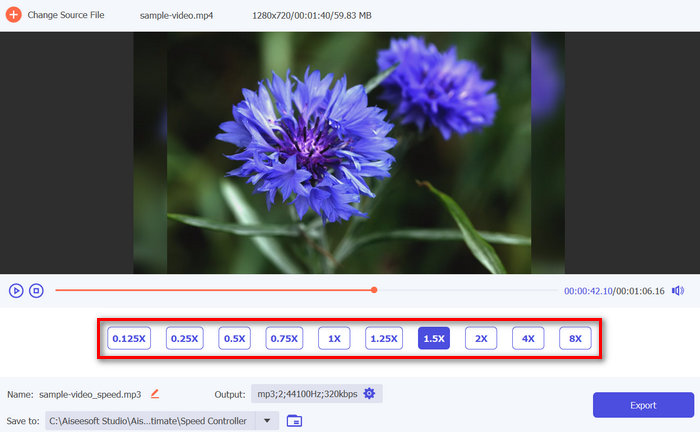
Helpoin tapa nopeuttaa ääntä on käyttää FVC-tiimin suosittelemaa Video Converter Ultimate -ohjelmaa. Tämä työkalu pystyy nopeuttamaan sekä pelkkää äänitiedostoa että videon sisään upotettua musiikkia. Se tarjoaa runsaasti vaihtoehtoja sille, kuinka nopeaksi haluat äänitiedostosi, ja voit valita 1,25×–8×-kertaisen nopeuden tarpeesi mukaan.
Tämä työkalu on täydellinen kaikille, erityisesti videoeditoreille ja nouseville sisällöntuottajille, jotka tarvitsevat tarkkaa hallintaa ääniraitojensa temposta. Video Converter Ultimate tarjoaa käyttäjäystävällisen käyttöliittymän ja laajan valikoiman nopeudensäätövaihtoehtoja, ja se varmistaa, että voit räätälöidä äänen sopimaan täydellisesti videosi tahtiin riippumatta siitä, tarvitsetko hienovaraista lisäystä tai dramaattista kiihdytystä.
Käytä tätä seuraavasti:
Vaihe 1. Asenna ja lataa ensin tämä Video Converter Ultimate -työkalu laitteellesi.
Ilmainen latausWindows 7 tai uudempiTurvallinen lataus
Ilmainen latausMacOS 10.7 tai uudempiTurvallinen lataus
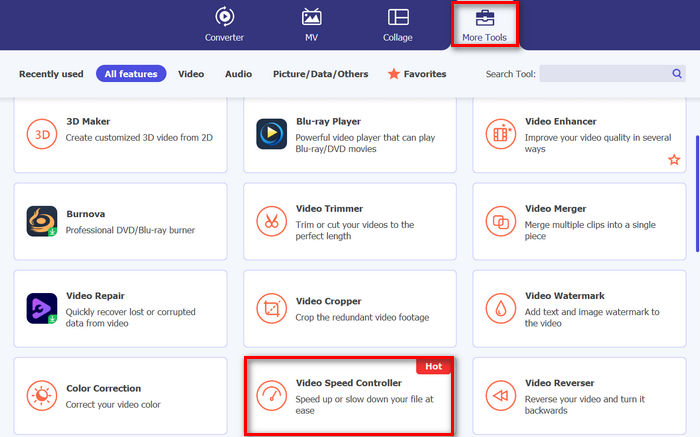
Vaihe 2. Käynnistä työkalu, siirry Toolbox-välilehdelle ja valitse Speed Video Controller.
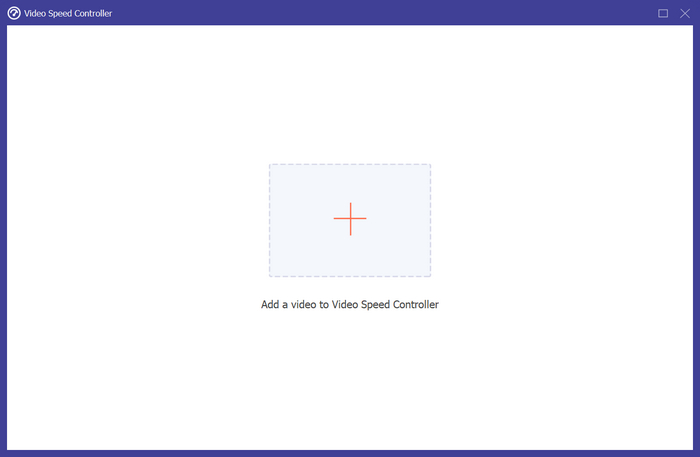
Vaihe 3. Napsauta sen jälkeen Add a Video to Speed Video Controller tuodaksesi sen äänitiedoston, jota haluat nopeuttaa. Jos haluat nopeuttaa videotiedostoa, se onnistuu myös täällä.
Vaihe 4. Kun olet valmis, valitse vain se nopeus, jonka haluat ottaa käyttöön äänellesi.
Vaihe 5. Siirry nyt Output Setting -kohtaan napsauttamalla alla olevaa Gear-kuvaketta. Valitse sieltä Audio Export ja aseta ulostuloformaatiksi MP3.
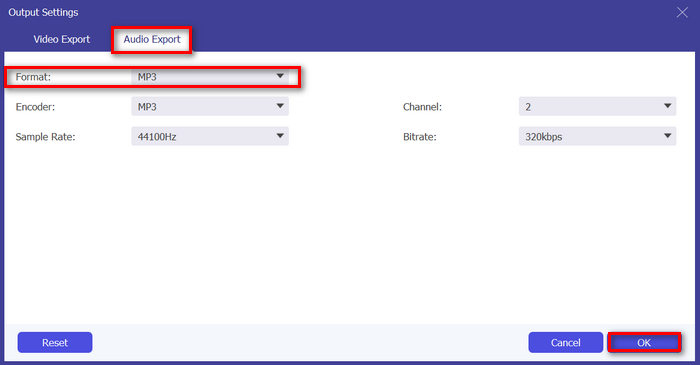
Vaihe 6. Lopuksi napsauta Export-painiketta.
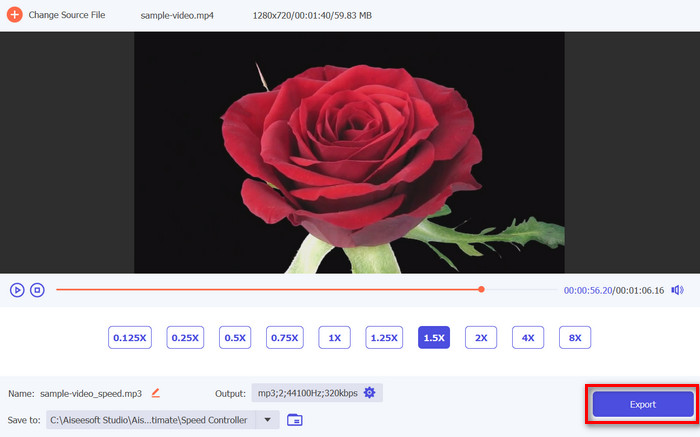
Parasta tässä Video Converter Ultimate -ohjelman Speed Video Controller -ominaisuudessa on se, että voit suoraan nopeuttaa videota, ja tiedosto viedään suoraan MP3-muodossa. Tämä on paljon kätevämpää kuin etsiä erillinen työkalu MP4-tiedoston muuntamiseksi MP3:ksi ennen kuin muutat videon nopeutta tai tempoa. Lisäksi se tukee useita video- ja ääniformaatteja, mikä tekee siitä erittäin yhteensopivan eri tiedostotyyppien kanssa.
Lopuksi sen intuitiivinen käyttöliittymä tekee käyttäjien helpoksi hyödyntää työkalun ominaisuuksia tehokkaasti. Lisäksi sen esikatseluominaisuus voi auttaa varmistamaan, että nopeuden säädöt vastaavat odotuksiasi ennen viennin viimeistelyä.
Osa 2: Nopeuta ääntä Audacityssä
Audacity on tunnettu ilmainen ohjelmisto, jota käytetään yleisesti äänen tallentamiseen ja muokkaamiseen. Tämän työkalun avulla käyttäjät voivat nopeuttaa ääntä helposti, jolloin he voivat säätää tempoa vaikuttamatta sävelkorkeuteen. Tämä ominaisuus on erityisen hyödyllinen luotaessa aikajaksotettuja ääniraitoja, nopeuttaa podcasteja tai synkronoida ääntä nopeamman videosisällön kanssa.
Käytä tätä seuraavasti:
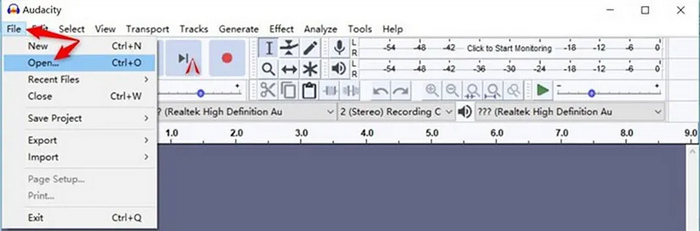
Vaihe 1. Käynnistä työkalu, siirry File-välilehdelle ja napsauta sitten Open tuodaksesi sen äänitiedoston, jota haluat nopeuttaa.
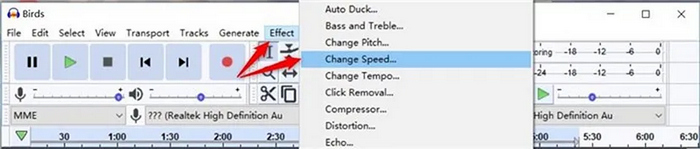
Vaihe 2. Siirry sen jälkeen Effect-valikkoon, napsauta Change Speed, ja säädä siitä äänesi nopeutta. Kun olet valmis, napsauta OK ottaaksesi muutokset käyttöön.
Vaihe 3. Mene lopuksi File-välilehdelle ja etsi Export-vaihtoehto. Valitse sen jälkeen haluamasi vientiasetus tallentaaksesi muokatun äänitiedoston.
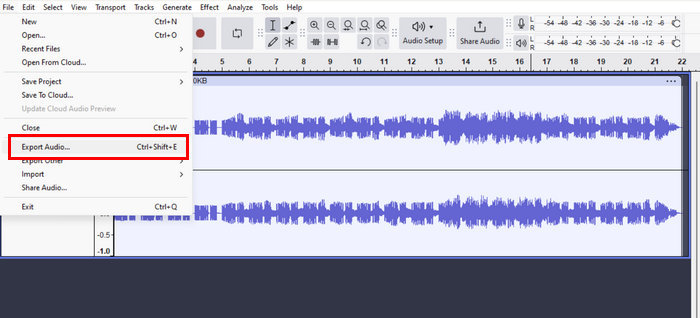
Audacityn hyvä puoli on, että se on todella tehokas ja vapaasti saatavilla oleva äänenmuokkausohjelma, joka tarjoaa monenlaisia ominaisuuksia, joista on hyötyä äänen nopeuttamisessa, ääniraitojen yhdistämisessä ja muussa editoinnissa. Sen monipuolisuus, useilla alustoilla toimivuus ja ei-tuhoava editointi tekevät siitä monelle ensisijaisen valinnan. Toisaalta aloittelijoille on luvassa opettelukynnys, käyttöliittymässä on rajoituksia, ja jotkin edistyneet toiminnot edellyttävät lisäosien käyttöä. Siitä huolimatta Audacity on luotettava vaihtoehto kaikille, jotka haluavat muuttaa ja tehostaa äänisisältöään tehokkaasti.
Osa 3: Nopeuta ääntä Premiere Prolla
Adobe Premiere Pro on tunnettu ammattimainen videoeditointiohjelmisto, joka on hyödyllinen äänitiedostojen nopeuttamiseen. Tämä Premier-ominaisuus auttaa synkronoimaan äänen nopeatempoisen videosisällön kanssa, mikä tekee siitä ihanteellisen dynaamisten ja mukaansatempaavien videoiden luomiseen.
Käytä tätä seuraavasti:
Vaihe 1. Käynnistä ensin Adobe Premiere Pro -ohjelma laitteellasi.
Vaihe 2. Tuo seuraavaksi leikemateriaalisi Premiere Pron Timeline-aikajanalle.
Vaihe 3. Napsauta sen jälkeen leikettä hiiren oikealla painikkeella valitaksesi sen ja napsauta Speed/Duration.
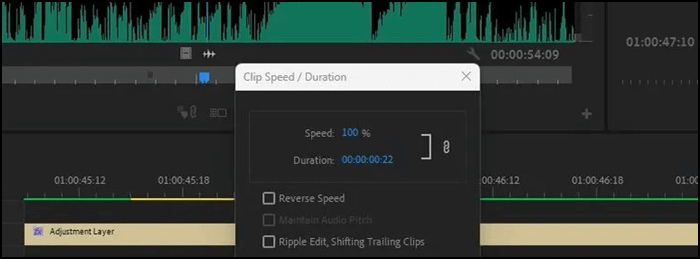
Vaihe 4. Nopeuttaaksesi ääntä muuta nyt Percentage-arvoa sen mukaisesti, kuinka paljon haluat nopeuttaa sitä.
Vaihe 5. Kun olet valmis, napsauta OK-painiketta viimeistelläksesi prosessin.
Tämän jälkeen voit yhdistää nopeutetun äänen ja videon luodaksesi uudenlaisen elokuvamaisen efektin.
Adobe Premiere Prolla äänen nopeuttaminen voidaan tehdä tehokkaasti ja tarkasti. Keskeisiä ominaisuuksia ovat integrointi muihin Adoben työkaluihin. Sen monimutkaisuus on kuitenkin jyrkkä oppimiskäyrä aloittelijoille, ja se vaatii tehokkaan käyttöjärjestelmän toimiakseen sujuvasti. Näistä rajoituksista huolimatta Premiere Pro on huippuvalinta ammattilaisille kattavien ominaisuuksiensa ja erinomaisten tulostensa ansiosta.
Osa 4: Nopeuta ääntä Garagebandin avulla
Jos olet Mac-käyttäjä, paras työkalu äänen nopeuttamiseen on käyttää GarageBandia. Tämä on Applen kehittämä ilmainen työkalu iOS-, iPadOS- ja macOS-käyttäjille musiikin ja podcastien luomiseen. Tämä työkalu ei kuitenkaan ole vain musiikin tuotantoon, vaan se on erinomainen myös äänenkäsittelyssä. Yksi sen erottuvista ominaisuuksista on kyky säätää ääniraitojen tempoa, jolloin voit helposti nopeuttaa tai hidastaa nauhoituksia projektisi tarpeiden mukaan.
Käytä tätä seuraavasti:
Vaihe 1. Avaa GarageBand Macillasi ja tuo äänitiedosto. Sen jälkeen kaksoisnapsauta raitaa tai paina E-näppäintä avataksesi editorin.
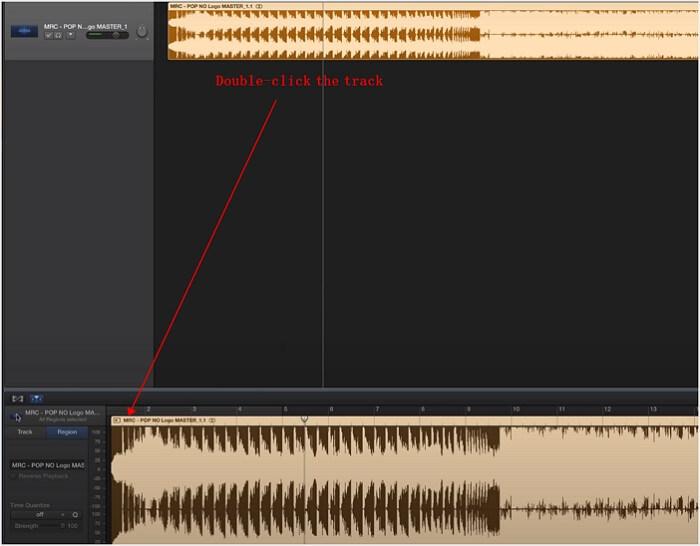
Vaihe 2. Napsauta sen jälkeen kuvaketta, valitse Track ja rastita Enable Flex salliaksesi ääniraitojen muokkaamisen.
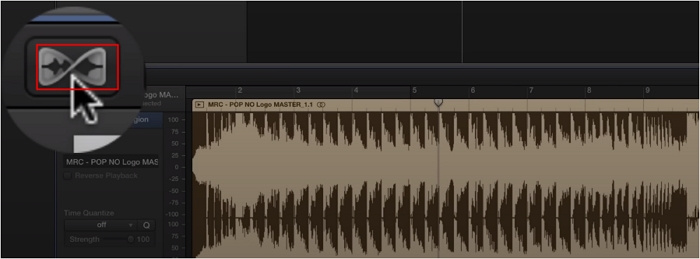
Vaihe 3. Siirry lopuksi Tempo-asetuksiin ja syötä korkeampi arvo mieltymyksesi mukaan nopeuttaaksesi ääniraitaa.
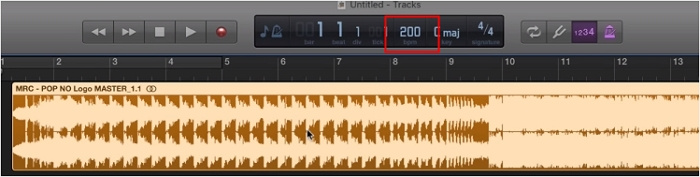
Siinä se! GarageBandilla äänen nopeuttaminen on helpompaa kuin koskaan. Tämä käyttäjäystävällinen työkalu tarjoaa todella suoraviivaisen prosessin ääniraitojen tempon säätämiseksi tarpeidesi mukaan. Vaikka tämä työkalu tarjoaa helpon käytön ja saumattoman integroinnin Mac-laitteiden kanssa, sillä on kuitenkin rajoituksensa. Siitä puuttuu joitain edistyneitä ominaisuuksia, ja se kohtaa usein yhteensopivuusongelmia siirrettäessä projekteja muille alustoille tai ohjelmistoille. GarageBand on kuitenkin luotettava valinta Mac-käyttäjille, jotka etsivät yksinkertaista ja tehokasta ratkaisua äänen nopeuttamiseen.
Osa 5: Vaihda ääni verkossa
Jos etsit verkkotyökalua äänen nopeuttamiseen, Music Speed Changer on sinua varten. Kyseessä on kätevä web-sovellus, jonka avulla käyttäjät voivat muuttaa ja käsitellä äänitiedostojen nopeutta ja sävelkorkeutta reaaliaikaisesti. Tämän työkalun avulla voit muuttaa äänesi tempoa vaikuttamatta sävelkorkeuteen tai toisinpäin muuttaa sävelkorkeutta muuttamatta nopeutta. Tämä on erinomainen ratkaisu käyttäjille, joiden täytyy synkronoida ääni nopeatempoisten videokuvien kanssa.
Käytä tätä seuraavasti:
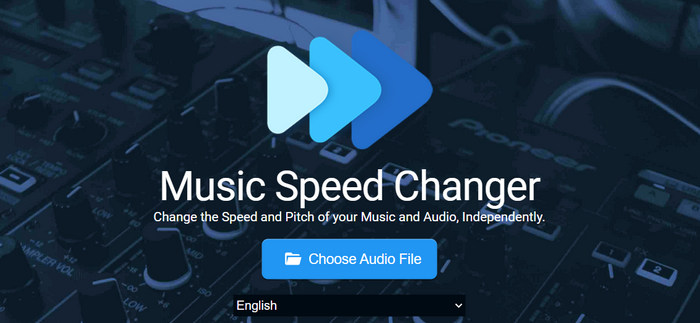
Vaihe 1. Napsauta ensin Choose Audio File -painiketta tuodaksesi sen äänitiedoston, jota haluat nopeuttaa.
Vaihe 2. Nopeuttaaksesi äänitiedostoasi napsauta vain Plus-painiketta tai siirrä keltaista palkkia oikealle säätääksesi nopeutta helposti.
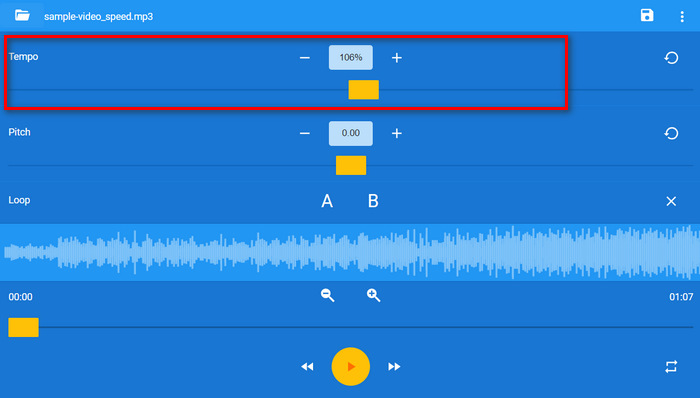
Vaihe 3. Jos haluat esikatsella äänitiedostoasi, voit napsauttaa alla olevaa Play-painiketta kuunnellaksesi sen.
Vaihe 4. Kun kaikki on valmista, napsauta näytön oikeassa yläkulmassa olevaa Save-painiketta. Nopeutettu äänitiedosto tallentuu suoraan tietokoneellesi.
Vaikka Music Speed Changer tarjoaa yksinkertaisen ja intuitiivisen käyttöliittymän äänitiedostojen nopeuttamiseen, sillä on myös rajoituksia. Siitä voi esimerkiksi puuttua joitain työpöytäohjelmiston lisäominaisuuksia. Lisäksi käyttäjät voivat kokea rajoituksia käsiteltävien äänitiedostojen pituuteen tai kokoon. Näistä rajoituksista huolimatta Music Speed Changer on edelleen kätevä ratkaisu nopeaan äänen nopeuden säätämiseen verkossa.
Osa 6: Usein kysyttyä äänen nopeuttamisesta
Kuinka nopeuttaa ääntä muuttamatta sävelkorkeutta?
Voit nopeuttaa ääntä muuttamatta sävelkorkeutta käyttämällä ohjelmistoja, kuten Audacity tai Adobe Premiere Pro, jotka tarjoavat vaihtoehtoja säätää tempoa samalla kun sävelkorkeus säilyy. Vaihtoehtoisesti online-työkalut, kuten Music Speed Changer, tarjoavat myös tämän toiminnon.
Kuinka voin muuttaa äänen nopeutta iPhonessa?
Voit muuttaa iPhonen äänen nopeutta käyttämällä erilaisia sovelluksia, kuten GarageBand, Voice Record Pro tai mitä tahansa muuta äänenmuokkaussovellusta, joka tukee nopeudensäätöominaisuuksia.
Mitä sovellusta voin käyttää äänen nopeuttamiseen?
On olemassa useita sovelluksia, joilla voit nopeuttaa ääntä laitteestasi ja vaatimuksistasi riippuen. Pöytätietokoneiden käyttäjille ohjelmistot, kuten Video Converter Ultimate, Audacity, Adobe Premiere Pro tai GarageBand, ovat suosittuja valintoja. Jos pidät parempana verkkotyökaluista, vaihtoehdot, kuten Music Speed Changer, tarjoavat käteviä tapoja säätää äänen nopeutta.
Mikä on kappaleen nopeus musiikissa?
Kappaleen nopeus musiikissa mitataan tyypillisesti lyönteinä minuutissa tai BPM:nä. Se viittaa musiikin tempoon tai vauhtiin, mikä osoittaa kuinka nopeita tai hitaita lyöntit ovat. Eri musiikkityypeillä voi olla erilaiset keskimääräiset BPM-alueet, ja nopeatempoisilla genreillä, kuten tanssilla tai elektronisella musiikilla, on korkeammat BPM-arvot verrattuna hitaampiin genreihin, kuten balladeihin tai klassiseen musiikkiin.
Johtopäätös
Siinä se on! Kaikilla tässä artikkelissa esitellyillä menetelmillä äänitiedoston nopeuttaminen on yksinkertaista ja helppoa riippumatta taitotasostasi tai käytettävissä olevista työkaluista. Valitsetpa sitten Video Converter Ultimaten helppouden, Audacityn vahvat ominaisuudet, Adobe Premiere Pron ammattimaiset ominaisuudet, Mac-ystävällisen GarageBandin tai verkkotyökalujen, kuten Music Speed Changerin, yksinkertaisuuden, sinulla on useita vaihtoehtoja. sinun erityistarpeesi. Nämä työkalut eivät ainoastaan auta sinua säätämään äänen tempoa, vaan varmistavat myös, että lopputuotteesi on täydellisesti linjassa videosi tahdin ja energian kanssa.
Nopeuta äänitiedostojasi jo tänään ja huomaa, miten suuren eron se tekee luovassa työssäsi!
-
 [4 tapaa] Videoiden nopeuttaminen verkossa
 Haluatko nopeuttaa videon katselua verkossa? Lue tämä artikkeli saadaksesi lisätietoja videon nopeuttamisesta eri tavoilla.
-
 Helpompia tapoja nopeuttaa MP4-muotoisia videoita [offline ja online]
 Haluatko nopeuttaa videotasi MP4-muodossa? Tämä artikkeli saattaa auttaa sinua ymmärtämään eroja videon nopeuttamisessa joko online- tai offline-tilassa.
-
 [Ilmainen ja maksullinen] GIF Speed Changer: Hot Picks 2025
 Oletko tyytymätön verkossa tekemääsi GIF-tiedostoon, koska se on tylsää ja hidasta? Tämä on onnenpäiväsi, koska esittelemme artikkelin GIF-nopeudenvaihtajasta ja yksityiskohdista, jotka auttavat sinua käyttämään ja hallitsemaan sitä.
